Team-Level Two-Factor Authentication
Require two-factor authentication for all team members accessing your organisation's data.
Overview
Shocking Energy supports team-level two-factor authentication (2FA) enforcement. When enabled for your team:
- All team members must have 2FA set up on their account before accessing the team
- Active sessions require additional verification to ensure secure access
- Enforcement applies consistently across both web and mobile applications
This security control is designed for organisations that require 2FA for access to operational data and customer records.
Configuration
Requiring 2FA for your team
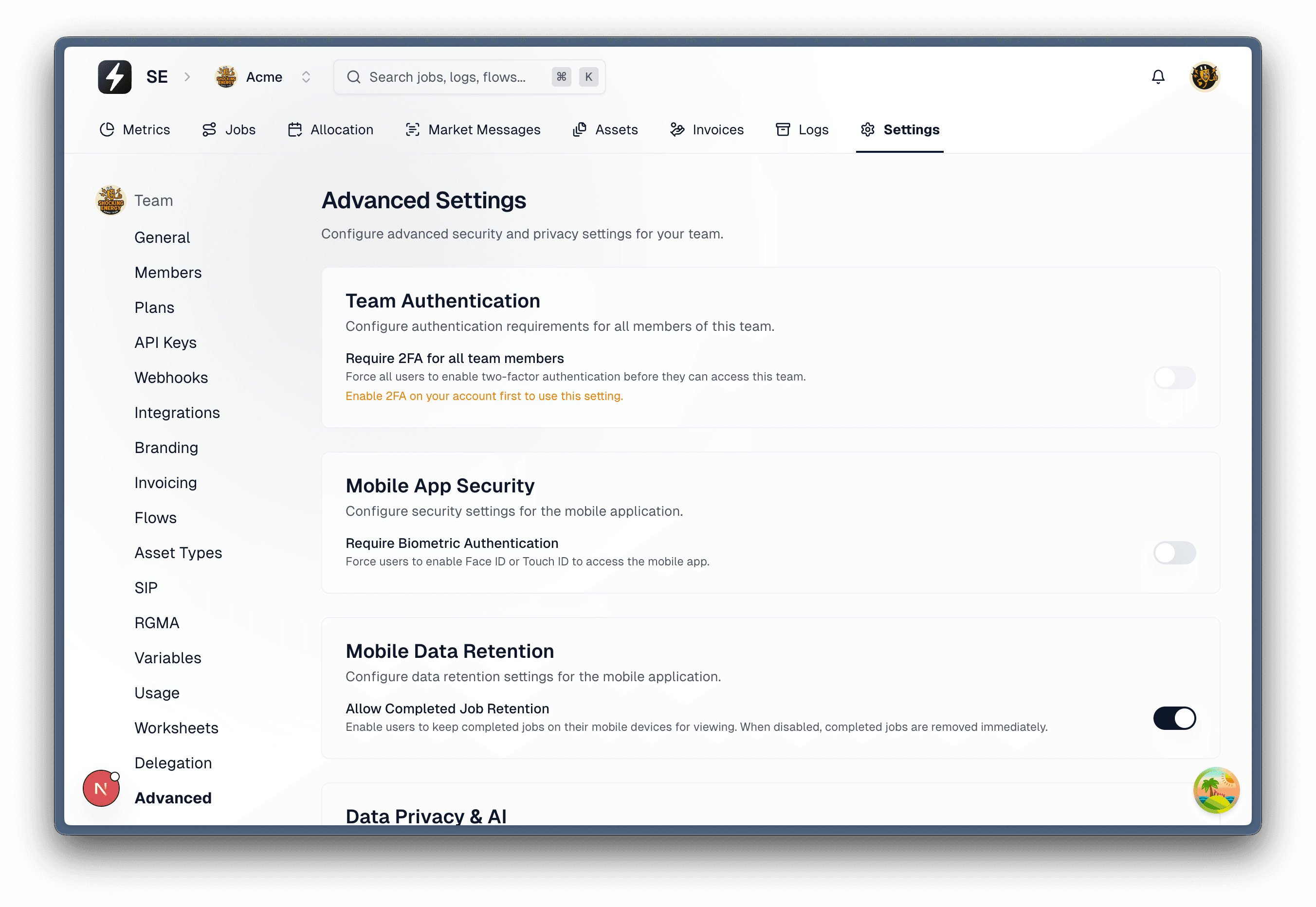
Team owners and administrators can enable 2FA enforcement from the team settings:
- Off (default): Two-factor authentication is optional for team members
- On: Two-factor authentication is required for everyone accessing the team
To prevent accidental lockout, you must have 2FA enabled on your own account before you can enforce it for your team.
How it works
Shocking Energy separates two concepts:
- Team membership — you can be invited and become a member of a team
- Team access — you can actively work within a team's workspace
When a team enforces 2FA:
- Joining the team: You can still accept an invitation and become a member
- Accessing the team: You must first enable 2FA on your own account
Once 2FA is enabled on your account, you may be asked to complete a verification challenge before accessing the team. This ensures your session maintains a high level of security assurance.
User experience
On the web
Selecting a team
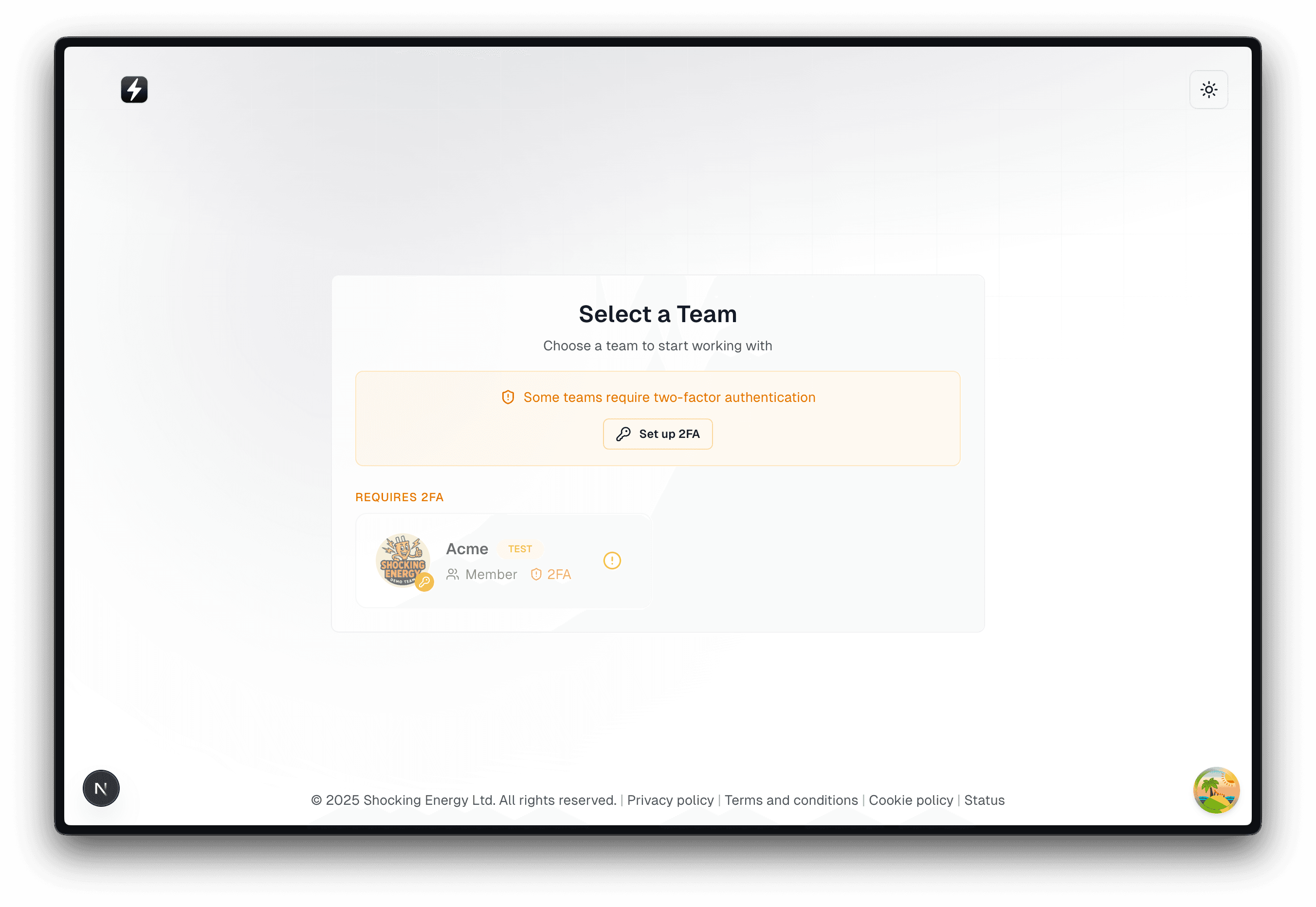
If you attempt to access a team that requires 2FA but haven't enabled it:
- The team appears as locked in your team list
- You're guided through the 2FA setup process
If enforcement is enabled whilst you're signed in
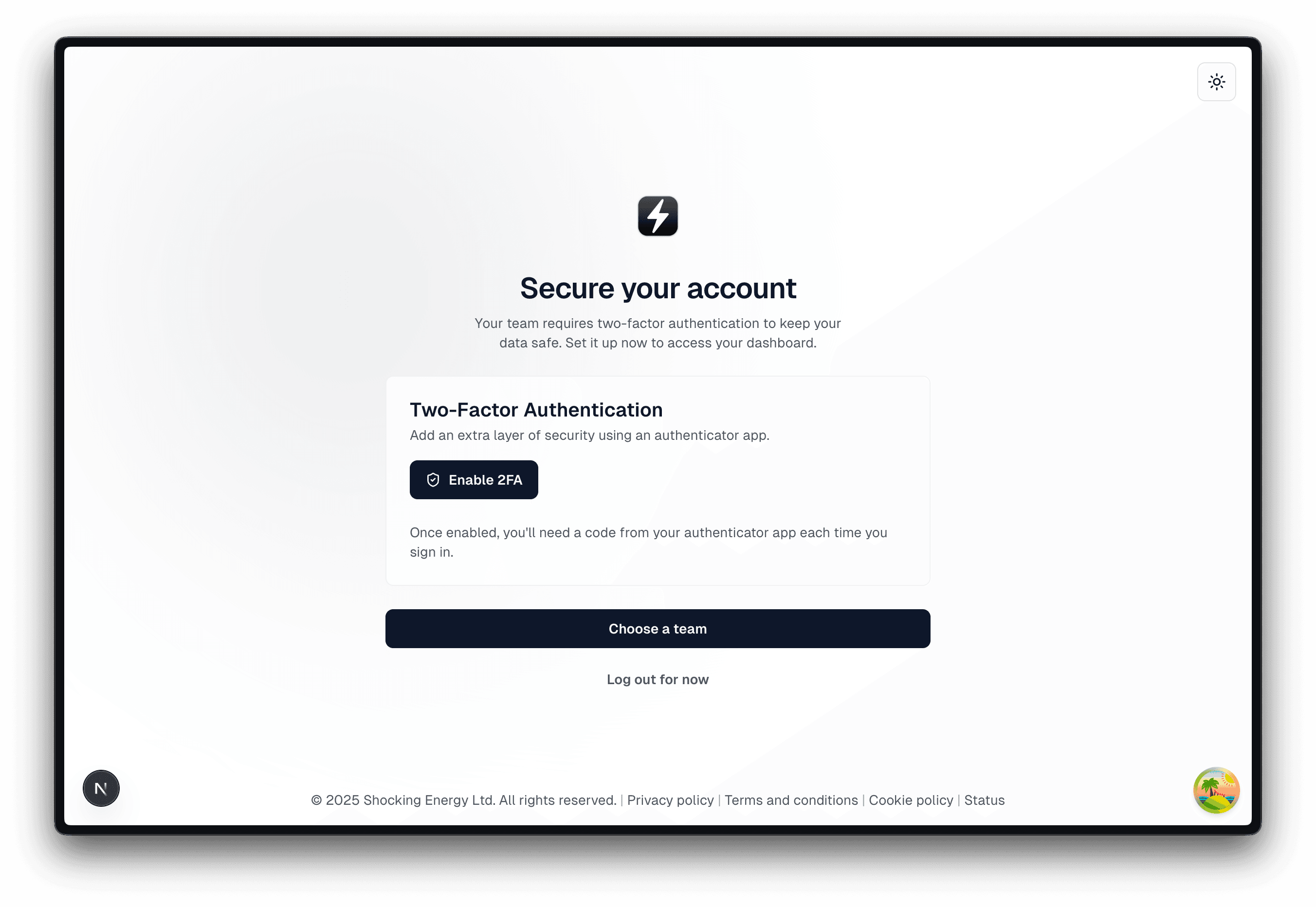
When a team owner enables 2FA enforcement:
- Team members without 2FA are guided to set it up
- Team members with 2FA may be asked to verify their identity
Accepting invitations
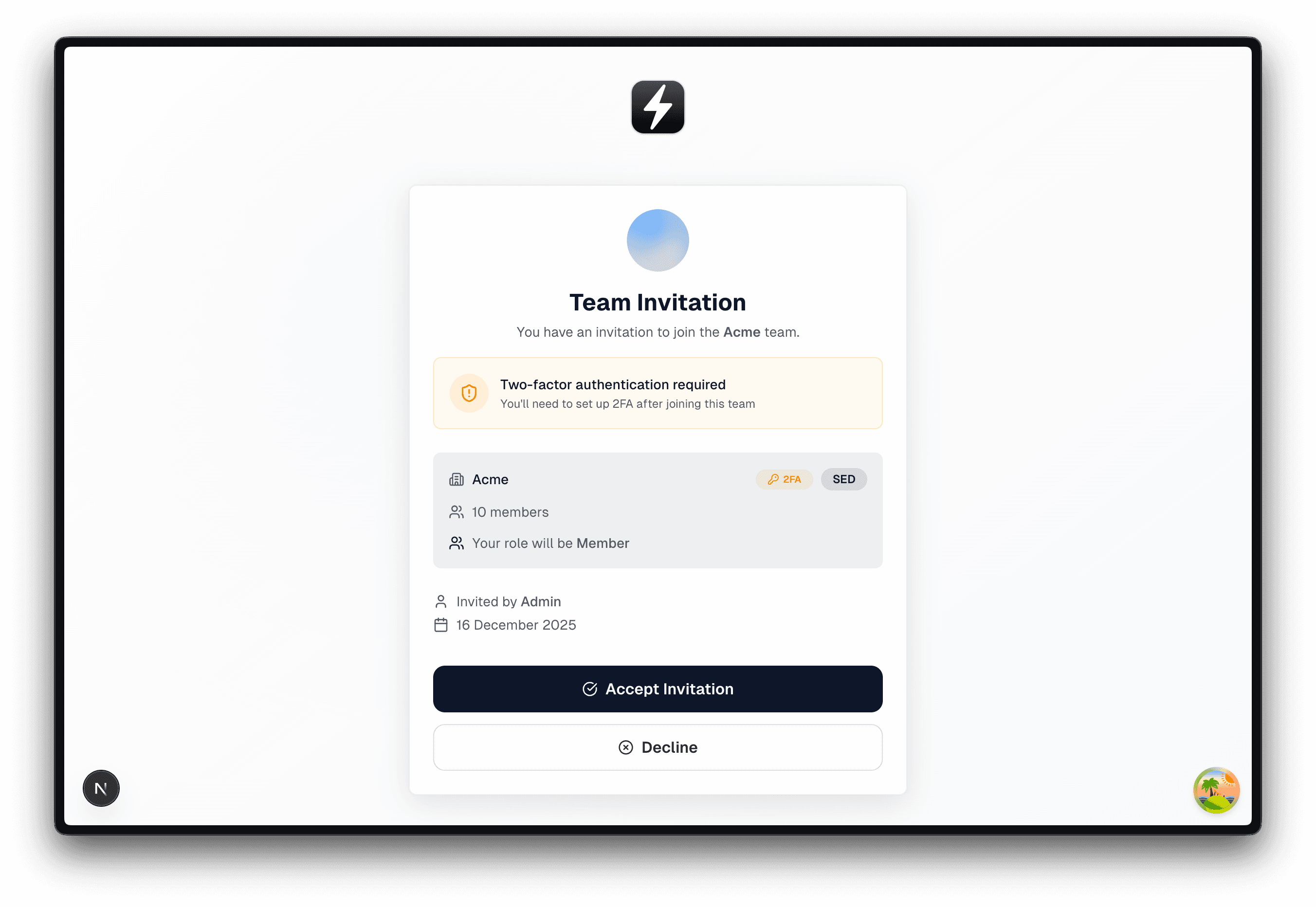
When you accept an invitation to a team that requires 2FA:
- You're added as a member immediately
- If you don't have 2FA enabled, you're redirected to set it up
- The team becomes accessible once 2FA setup is complete
On mobile
If your currently selected team requires 2FA and your session needs verification:
- The app displays a screen explaining the requirement
- You can switch to another team that doesn't require 2FA, or
- Sign out and complete 2FA verification via the web dashboard, then sign back in
Administrator visibility
Team administrators can view 2FA adoption across their team:
- The team members list shows whether each member has 2FA enabled on their account
- This helps identify which team members may need support enabling 2FA
The "2FA enabled" status indicates whether a team member has completed 2FA setup on their account. This is separate from whether they've verified their identity in their current session.
Security architecture
Shocking Energy enforces 2FA at multiple layers to provide defence in depth:
Access control
Users cannot access an enforced team until they have completed 2FA setup on their account.
Session verification
API requests to team resources require an elevated session state, ensuring the user has recently verified their identity.
Application enforcement
Both web and mobile applications guide users through setup and verification flows. The web application responds to enforcement changes in near real time.
Fail-safe behaviour
If the system cannot verify enforcement status due to a temporary issue, it defaults to denying access to potentially protected teams. This "fail closed" approach ensures security is maintained even during service disruptions.
What's protected
When 2FA enforcement is enabled:
- Access to all team features requires 2FA to be enabled on your account
- Sensitive operations require recent identity verification
- Protection applies across web and mobile applications
Current scope
- 2FA is enforced per team. Users may access teams that don't require 2FA without having it enabled
- Mobile verification is web-assisted. If mobile verification is required, users complete the process via the web dashboard
Frequently asked questions
Changes take effect immediately
When you enable or disable 2FA enforcement:
- The change applies immediately to new access attempts
- Users currently signed in are guided to verify or set up 2FA as needed
- No service restart or additional configuration is required